When you’re building in Salesforce, it’s easy to think of it as a limitless platform, but there are some hard and fast rules you absolutely need to know. These are the “governor limits,” and they dictate just how many custom objects, fields, and relationships you can create. The big numbers to keep in your head are the 3,000 total custom objects per org (this can change based on your edition), a ceiling of 800 custom fields on any single object, and a firm cap of 40 total relationships (both lookup and master-detail) per object.
Knowing these numbers isn’t just trivia; it’s fundamental to building a data architecture that won’t break six months down the road.
Your Quick Reference Guide to Salesforce Object Limits
For any RevOps or engineering team, these numbers are your guardrails. They come up constantly, whether you’re whiteboarding a new feature or doing a health check on your existing setup. If you ignore them, you’ll eventually hit a wall that forces a painful, time-consuming refactor. Think of this section as your cheat sheet—a quick, scannable guide to the most critical constraints you’ll face.
This infographic breaks down the three core limits that every Salesforce architect or developer should have memorized.
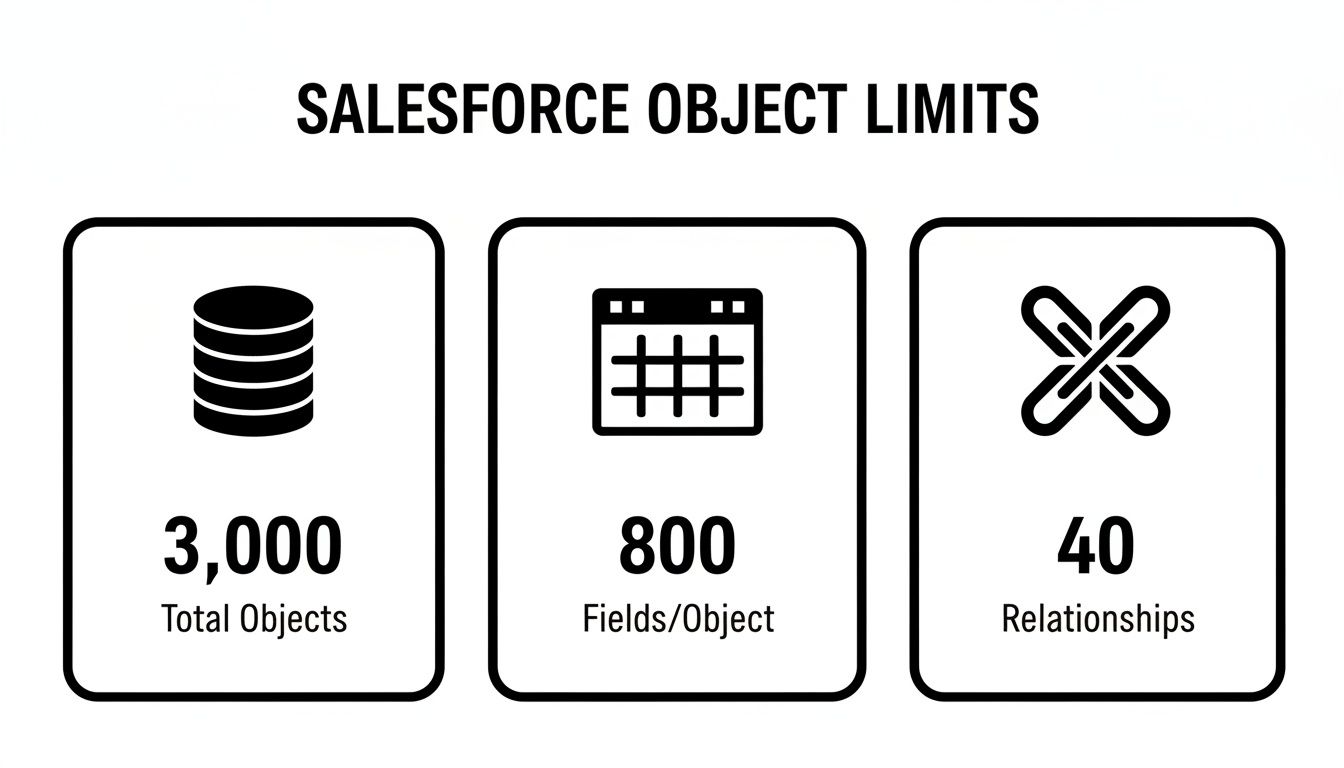
What this really highlights is that even though the org-wide object limit feels massive, it’s the per-object limits—especially fields and relationships—that usually cause the most headaches and force tough architectural decisions.
Key Custom Object and Field Limits
Here’s a handy table that gets right to the point, breaking down the most important governor limits. Keep this bookmarked and use it as a quick lookup tool whenever you’re planning your data model. It’ll help ensure what you build is not only compliant but also scalable from the get-go.
Key Salesforce Custom Object and Field Limits A summary of the most critical governor limits for custom objects, fields, and relationships across different Salesforce editions.
| Limit Category | Limit Type | Value/Constraint | Notes for RevOps |
|---|---|---|---|
| Org-Wide Objects | Total Custom Objects | 3,000 (Varies by Edition) | This is a hard limit. Remember, objects from managed packages count against this total, so plan your capacity carefully. |
| Per-Object Fields | Total Custom Fields | 800 | This cap includes every single custom field type. It’s surprisingly easy to hit, so make it a habit to audit and remove unused fields. |
| Relationships | Total Relationships | 40 | This is your combined budget for all lookup and master-detail relationships. Overloading an object with relationships can kill performance. |
| Master-Detail | Max Per Object | 2 | An object can only be the “detail” side in two master-detail relationships. This is a major constraint you have to design around. |
| Roll-Up Summaries | Max Per Object | 40 (Varies) | The official limit is 40, but complex roll-ups can reduce this number. These are resource hogs, so use them sparingly and wisely. |
This table covers the limits you’ll encounter most often. Staying on the right side of these numbers is the first step toward building a healthy, high-performing Salesforce org that can grow with the business.
Understanding Org-Wide Custom Object Limits
While it’s easy to focus on individual object specs, the real game for RevOps and engineering teams is managing the single most important constraint: the total number of custom objects your entire Salesforce org can have. This isn’t just a number on a spec sheet; it’s the architectural ceiling that defines the long-term scalability of your whole data model.

Think of your org’s capacity as a plot of land. Every time you spin up a new custom object for a new GTM motion or integration, you’re building on that finite space. If you hit the boundary unexpectedly, all construction stops. Projects get frozen, and you’re suddenly facing a painful—and expensive—architectural teardown.
The Hard Cap and Your Edition’s Allowance
The number that should be burned into every Salesforce architect’s brain is the absolute org-wide cap. Salesforce draws a hard line here, and for good reason: it directly impacts performance and stability. An org can have a maximum of 3,000 total custom objects. This is a hard limit that includes everything, no matter where it came from.
This is a crucial distinction. Your specific Salesforce edition (like Enterprise or Unlimited) gives you a certain allowance of custom objects you can create. You can often pay to increase that allowance, which makes it feel like a “soft limit.” The 3,000 cap, however, is non-negotiable. Even objects from managed packages, which might not count against your edition’s allowance, absolutely count toward this ultimate ceiling. You can learn more about how these enterprise limits are structured and why they matter for planning.
For a growing company, the real test isn’t just staying under your edition’s limit today. It’s about carefully managing your consumption rate so you don’t slam into that absolute ceiling a few years from now. This is where proactive governance makes all the difference.
What Actually Counts Toward the Limit?
You have to be crystal clear on what eats up an object slot. If you only look at the objects your team has built manually, you’re missing the full picture. The total count is a sum of a few different sources.
- Manually Created Objects: This one is obvious. Every custom object you build in Setup or via the API counts against both your edition allowance and the org-wide cap.
- Installed Managed Packages: Objects that come from AppExchange packages are often the biggest culprit. They might not use up your edition’s quota, but they absolutely count toward the 3,000 total org limit.
- Unmanaged Packages and Deployed Metadata: Any custom objects you deploy through change sets, SFDX, or other metadata tools also get added to the tally.
For anyone in a RevOps engineering role, this changes how you vet new tools. You can’t just look at an AppExchange app’s features; you have to analyze its metadata footprint. A single, seemingly simple package could install dozens—or even hundreds—of objects, gobbling up your capacity for future in-house projects.
A good rule of thumb is to keep a healthy buffer. Try to operate at no more than 70-80% of your total limit. That breathing room gives you the agility to handle new business needs without backing yourself into an architectural corner.
Field and Relationship Limits: The Per-Object Puzzle
Once you get past the big, org-wide numbers, the real architectural challenge begins at the object level. Every single custom object comes with its own set of guardrails for fields and relationships. Honestly, these are the limits that force the toughest data modeling decisions and where most RevOps engineering teams run into trouble.
Think of each object as a bucket with a finite capacity. Every custom field you create, every relationship you build, takes up a little bit of that space. While you might have plenty of room for new objects in your org, it’s the constraints on individual objects that lead to performance bottlenecks and a whole lot of technical debt down the road if you’re not careful.
The Custom Field Ceiling
The most famous—or infamous—per-object limit is the cap on custom fields. You can have a maximum of 800 custom fields on a single custom object. That number sounds huge, right? But for core, heavily-used objects like Account or a custom Subscription object, you’d be surprised how quickly that ceiling can approach.
This isn’t just one type of field, either. It’s a hard limit that includes everything from a simple text field to a complex formula. There’s no way around it, which makes good governance absolutely essential.
A classic mistake I see all the time is treating a core object like a junk drawer for every random piece of data. The only sustainable way to stay under this limit is with proactive governance, like running regular audits to find and kill off unused fields.
Why Relationship Limits Matter Most
Even more than the field limit, the cap on object relationships will fundamentally shape your schema. A single object can have a maximum of 40 total relationships. This is your combined budget for both lookup and master-detail relationships, and it forces you to be incredibly deliberate about how you connect your data.
You simply can’t link an object to every other related entity just because it seems convenient. You have to make tough calls and prioritize the connections that matter most.
Here’s a quick breakdown of what this means in practice:
- Total Relationship Cap: The 40-relationship limit is a hard stop. If you hit it, you’re looking at a major architectural redesign, often involving creating new junction objects just to manage all the connections.
- Master-Detail Constraints: An object can only be on the “detail” side of two master-detail relationships. This is a big one because master-detail relationships create a tight bond between objects, dictating everything from security and record ownership to how deletions cascade.
- Roll-Up Summary Fields: You can have up to 40 roll-up summary fields on an object. But be warned: this number can effectively shrink if your roll-ups are complex. Each one is a resource-heavy calculation, so use them sparingly to keep your org from grinding to a halt.
Let’s make this real. Imagine you’re building a custom Project object. You’ll probably need to link it to Accounts, Contacts, Opportunities, Contracts, and Invoices. That’s five relationships right there. Now, what if you also need to link it to various User records for different roles—like Project Manager, Sales Rep, and Support Agent? Your relationship count is climbing fast, and that 40-relationship budget suddenly doesn’t feel so generous. These Salesforce custom object limits demand that you plan your data model from day one.
Limits on Field History Tracking and Data Retention
Beyond just how many objects and fields you can create, you need to worry about another critical set of constraints: those affecting auditing, compliance, and data governance. Field History Tracking is a fantastic tool for seeing how data evolves, but Salesforce’s built-in version has some hard limits that can cause major headaches for RevOps and engineering teams.

These aren’t just minor technical gotchas. They have real business consequences, especially for companies in regulated industries or those that need a solid audit trail for financial and operational data. Knowing exactly where these boundaries are is the first step toward building a data model that’s both scalable and compliant.
The 20-Field Tracking Limit
Out of the box, Salesforce lets you track the history for up to 20 fields per object, whether it’s standard or custom. That might sound like a lot, but for core objects like Accounts, Opportunities, or a custom object managing complex contracts, it’s often not nearly enough. You can easily have dozens of fields that are critical to audit.
This hard limit forces you into tough trade-offs. Your team has to play a painful game of “which fields are most important?” to decide what gets tracked. This can easily create compliance gaps. A change to a secondary billing address might seem minor day-to-day, but it could be the key piece of evidence in a future dispute.
Data Retention Policies and Their Impact
Making matters more complicated is Salesforce’s native data retention policy. While you’re limited to 20 fields, you can pay for the Field Audit Trail (part of Salesforce Shield) to bump that up to 60 fields. However, the bigger issue for many has been retention. Salesforce history data was historically deleted after around 18–24 months, which can be a deal-breaker for long-term auditing. You can find more details on these specific Salesforce data policies.
If you’re in finance, healthcare, or any other industry with strict regulations, a two-year data retention window is often a non-starter. Relying only on the standard Field History Tracking can be a serious business risk.
Strategies for Overcoming Tracking Limitations
When the native limits just don’t cut it, you need a solid plan. Winging it with ad-hoc solutions will only lead to scattered data and reporting chaos down the line. For a much deeper look at the setup and best practices, we have a complete guide on comprehensive field history tracking in Salesforce.
Here are a few proven strategies to expand your tracking and retention capabilities:
- Implement Field Audit Trail: If you have the budget, this is the most straightforward path. It immediately increases the tracked field limit to 60 per object and, more importantly, extends the data retention policy to 10 years, which satisfies most compliance needs.
- Utilize Big Objects: For archiving data long-term, you can build a custom process that moves old field history data into a Big Object. This keeps your historical data accessible for analysis without chewing up your primary data storage, which is far more expensive.
- External Data Stores: A more robust, and often more flexible, solution is to pipe your field history data to an external data warehouse like Snowflake or Google BigQuery. This approach gives you virtually limitless storage and far more powerful analytical tools, completely sidestepping Salesforce’s built-in limitations.
Strategies for Monitoring Your Custom Object Usage
If you’re not actively monitoring your Salesforce org’s limits, you’re flying blind. Just building a data model and hoping for the best is a classic rookie mistake that almost always leads to an architectural fire drill down the road. For RevOps teams, the only way to stay ahead is to have a solid, ongoing process for tracking how custom objects and fields are being used. This turns a potential crisis into a manageable conversation.
The quickest way to get a pulse check is right inside Salesforce Setup on the System Overview page. It gives you a high-level snapshot of your most important limits, including custom objects. It’s a great place to start, maybe for a quick peek once a week, to see the percentage of your allocation you’ve already burned through.
Getting Granular with Reports and SOQL
While the System Overview is good for a quick look, it won’t tell you how you got there. For that, you need to dig a little deeper with custom reports or, even better, SOQL queries. This is how you start tracking usage over time and pinpointing which teams or projects are the hungriest for new fields and objects.
A really effective technique is to query the EntityDefinition and FieldDefinition objects directly. This gives you the raw metadata, including creation dates, so you can actually build a historical picture of how your org has grown (or bloated).
For instance, this simple SOQL query will give you a straight count of all your custom objects:
SELECT COUNT(Id) FROM EntityDefinition WHERE IsCustomizable = true AND IsCustomSetting = false
Tracking at this level is what separates a reactive team from a proactive one. You can actually start forecasting when you might hit a critical limit, giving yourself months—not days—to figure out a smart solution. This is really about establishing a solid framework for your data. A great way to think about this is through the lens of what data observability is and how you can apply those ideas within Salesforce.
Setting Up Proactive Alerts
Spot-checking your usage is one thing, but getting an automated tap on the shoulder before you hit a wall is another. You absolutely need alerts to tell you when you’re getting close to a hard limit. Waiting for a user to get a “Cannot create new object” error is a sign of failure. For any RevOps team that takes itself seriously, proactive alerts are non-negotiable.
Don’t let a Salesforce governor limit be the thing that blocks a critical business initiative. Proactive alerts give you the runway to make smart architectural decisions instead of being forced into rushed, tactical fixes.
Here are a few ways to get those alerts in place:
- Scheduled Apex Jobs: You can write a pretty simple Apex class to run daily or weekly. Have it run a SOQL query against your metadata, check the count against a threshold you set (say, 80% of your total custom object limit), and then fire off an email or a Chatter post if you cross it.
- Custom Report Subscriptions: This is a low-code approach. Just build a Salesforce report that summarizes your custom object and field counts. Then, subscribe your key stakeholders to it so they get an automated update pushed to their inbox on a regular schedule.
- Third-Party Monitoring Tools: There are plenty of great tools on the AppExchange and beyond that are built specifically for monitoring org health. They often come with much more sophisticated alerting, historical trend analysis, and dependency mapping right out of the box, which can save you a ton of custom development work.
Advanced Strategies to Work Around Object Limits
Eventually, every enterprise-scale Salesforce org hits a point where simply tracking limit consumption isn’t enough. It’s a useful warning sign, sure, but it’s not a long-term plan. To build an architecture that can truly scale without buckling under pressure, RevOps engineering teams need to get creative and master strategies that work around Salesforce’s inherent platform limits.
These aren’t just tricks to delay hitting a ceiling. They’re proven architectural patterns that fundamentally change how you manage and access data at scale. The goal is to stop thinking of Salesforce as a place to store everything and start treating it as a dynamic hub that pulls in data from other sources. This keeps your core data model lean and fast while still giving users the information they need.

Using External Objects with Salesforce Connect
One of the most powerful tools in your arsenal is Salesforce Connect. It lets you create External Objects that look and feel just like native custom objects to your users, but the actual data lives somewhere else—like in Snowflake, BigQuery, or another ERP system. This is an absolute game-changer.
Here’s why it works so well:
- Zero Object Limit Consumption: Since the data isn’t stored in Salesforce, External Objects don’t count against your org’s custom object limits. You can surface data from dozens of external tables without using a single one of your precious object slots.
- Real-Time Data Access: Forget about complex, slow, and brittle ETL jobs. Salesforce Connect queries the external source on the fly, so your users are always looking at the most current information.
- Reduced Storage Costs: By keeping massive datasets outside of Salesforce, you avoid consuming your expensive file and data storage allocations.
Imagine you have a colossal order history table sitting in a separate SQL database. Instead of trying to cram millions of records into a custom Order__c object, you just create an External Object. Your sales team can see a customer’s complete order history right on the Account page, but the data itself never actually touches Salesforce storage or counts against its limits.
Data Partitioning and Archiving Strategies
Let’s be honest: not all data is created equal. For huge, transactional datasets like activity logs, audit trails, or years of historical engagement data, keeping it all in primary custom objects is a massive waste of resources. This is where a solid data partitioning and archiving strategy comes in.
The most mature Salesforce orgs treat their data like a library, not a warehouse. Active, frequently used data stays on the main shelves (custom objects), while historical archives are moved to a secure, accessible, but separate location.
Big Objects are Salesforce’s native answer to this problem. They’re built to store and manage absolutely massive datasets—we’re talking billions of records—right on the platform. You can archive old Task records, field history data, or system logs to a Big Object. While this data isn’t as readily available in the standard UI, it’s still queryable via asynchronous SOQL. This makes it perfect for compliance checks and historical analysis without bogging down your primary data model.
For more dynamic data streams that need to be captured as they happen, you might look into streaming solutions. Our guide on what change data capture is offers a great overview of how to handle those real-time data events.
Comparing Mitigation Strategies for Salesforce Limits
Choosing the right architectural pattern depends entirely on your specific needs—from data volatility and volume to user access requirements. The table below breaks down the most common strategies to help you decide which tool to pull from your toolkit.
| Strategy | Best For | Pros | Cons & Considerations |
|---|---|---|---|
| External Objects | Surfacing large, real-time datasets from external systems (e.g., ERP, data warehouses) without consuming Salesforce storage or object limits. | • Doesn’t count against object limits • Real-time data access (no sync) • Reduces Salesforce storage costs • Seamless user experience | • Can have performance/query limitations • Requires a robust external data source • Not ideal for data that needs heavy Salesforce automation (e.g., Apex triggers) |
| Data Archiving (Big Objects) | Storing massive historical, transactional, or immutable data (billions of records) natively on the platform for compliance and analysis. | • Massively scalable storage • Resides within the Salesforce ecosystem • Queryable via Async SOQL • Frees up primary object storage | • Limited UI access • Not for real-time operational use • Asynchronous queries have a delay |
| Data Partitioning (Skinny Tables) | Improving performance for reports and queries on objects with millions of records by creating a lean, indexed table with frequently accessed fields. | • Drastically speeds up read performance • Transparent to end-users • Uses standard Salesforce features • Reduces query timeouts | • Doesn’t solve storage limits • Still consumes one custom object • Requires careful design to be effective • Can’t be created manually (contact Salesforce support) |
| Off-Platform Data Sync | Moving non-essential or cold data to an external data warehouse and syncing only a small, operational subset back to Salesforce. | • Maximum flexibility and control • Lowers Salesforce storage costs significantly • Enables complex, cross-system analytics | • Requires building and maintaining ETL/Reverse ETL pipelines • Introduces data latency • Can be complex to manage data consistency |
Ultimately, a truly scalable Salesforce architecture often uses a mix of these strategies. You might use External Objects for real-time order data, Big Objects for archiving seven years of activity history, and a skinny table to speed up your core Opportunity reports. The key is to be intentional and pick the right pattern for the job.
Common Data Modeling Pitfalls to Avoid
Let’s be honest: hitting your Salesforce custom object limits rarely has to do with the size of your business. It’s almost always a symptom of your data modeling discipline, or lack thereof. Many teams make small, avoidable mistakes early on that snowball into massive technical debt, causing major architectural headaches down the road.
A classic misstep is creating a whole new custom object when a simple record type would have done the job. I’ve seen it countless times—separate objects for “Enterprise Accounts” and “SMB Accounts” when a single Account object with two record types would have been perfect. This simple choice not only conserves your precious object limit but keeps your entire data model clean and consolidated.
Another common trap is overusing master-detail relationships. They’re powerful, yes, but they create a very tight bond between objects, and you only get two per object. When teams burn through them for what could have been a simple lookup, they’re wasting a scarce resource. Later, when they actually need a true parent-child dependency, they’re forced into complex and frustrating workarounds.
Establishing Architectural Governance
The real culprit behind these issues is usually a lack of governance. Without a clear process for reviewing and approving metadata changes, your org can quickly devolve into a messy free-for-all of redundant fields, unnecessary objects, and poorly thought-out relationships. For any serious RevOps engineering team, a disciplined approach isn’t just nice to have—it’s essential.
The fix starts with a formal metadata review process. No new object or field gets created without a solid business case and an architectural sign-off. This one step forces everyone to think critically about their requests and ensures every addition to your data model is intentional.
Think of your data model as a living document, not a one-and-done project. It should be the single source of truth that guides every architectural decision and prevents the kind of metadata sprawl that quietly eats away at your org’s limits.
Implementing a Culture of Discipline
Great architecture isn’t just about processes and rules; it’s about building a culture of foresight and accountability. This means running regular audits to clean up your org and creating clear, accessible documentation that the whole team actually uses.
Here are a few practical steps to build this discipline:
- Create Data Model Documentation: Get a clear, visual map of your schema using a tool like Lucidchart or Miro. This documentation should clearly explain the purpose of each object and how it connects to others.
- Conduct Regular Audits: Put quarterly reviews on the calendar to find and get rid of unused fields and objects. A few simple SOQL queries or an AppExchange tool can quickly show you what metadata hasn’t been touched in months.
- Define Naming Conventions: Enforce consistent naming conventions for all new metadata. It sounds simple, but this practice makes your schema dramatically easier to understand, navigate, and maintain.
By putting these governance practices in place, you switch from being reactive—scrambling when you hit a limit—to being proactive. You’ll build a data model that not only runs efficiently today but is also ready to handle future business needs without a painful overhaul. And those Salesforce custom object limits? They’ll stay a distant concern.
Salesforce Limits FAQ
Let’s be honest, Salesforce limits can be a minefield. You think you have everything figured out, and then a managed package throws a wrench in your plans. Here are some straight-to-the-point answers to the questions our RevOps engineers hear all the time.
No dense documentation, just the practical info you need to make the right call.
Do Objects From Managed Packages Count Towards Org Limits?
Yes, they do, but there’s a crucial nuance here that catches a lot of people off guard. Objects from a managed package absolutely count toward the total org-wide hard limit—that’s the 3,000 custom object cap for your entire Salesforce instance.
Here’s the twist: those same objects typically do not count against your specific edition’s allowance. So, if you’re on Enterprise Edition with a soft limit of 200 custom objects, installing an app with 50 objects doesn’t eat into your personal 200-object budget.
This is a huge deal for capacity planning. You might feel like you have plenty of room to build, but a few hefty managed packages could sneak you right up to that non-negotiable org-wide ceiling. Always, always check an app’s metadata footprint before you hit that install button.
What’s the Difference Between a Hard and Soft Limit?
Knowing the difference between hard and soft limits is one of the most fundamental parts of managing a healthy org. They aren’t just different numbers; they represent completely different kinds of boundaries.
A hard limit is a concrete wall. It’s a fixed, non-negotiable ceiling that Salesforce will not raise, period. Think of the total org-wide custom object limit or the number of master-detail relationships per object. These are baked into the platform’s multi-tenant architecture to ensure performance for everyone, so no amount of money or pleading will get them changed.
A soft limit, on the other hand, is more like a default starting point. The number of custom objects per edition is a perfect example. You can often get these increased by contacting Salesforce with a solid business case. API call limits, data storage, and many other allocations are also soft limits. When in doubt, the official docs will tell you which is which.
A quick pro-tip: Don’t wait until your back is against the wall to ask for a soft limit increase. Reaching out to your Salesforce AE proactively with a well-documented business case will always get you a better, faster response than sending a panicked, “we’re down!” email.
When Can I Request a Limit Increase From Salesforce?
You should request an increase for any soft limit, but timing and your justification are everything. The best time to ask is before it becomes an emergency. Use your monitoring to keep a close eye on your usage.
Once you see you’re consistently sitting at around 80% utilization, that’s your cue to start the process.
To get your request approved, you need to hand them a compelling business case on a silver platter. Make it easy for them to say yes by clearly explaining:
- The specific limit: “We need to increase our custom object limit for Enterprise Edition.”
- The ‘why’: “This is required for our upcoming CPQ implementation, which is critical for the Q4 sales launch.”
- The impact of not raising it: “Without this, our sales team cannot generate quotes, directly blocking a projected $2M in pipeline.”
- The new number you need: “We’ve calculated we need an increase of 50 objects to support the project and allow for 12 months of growth.”
Trying to request an increase for a hard limit is almost always a dead end. Focus your energy on designing around those constraints and save your requests for the limits that are actually designed to be flexible.
Struggling to design a scalable Salesforce architecture that respects platform limits? RevOps JET provides on-demand revenue operations engineering from a dedicated team that architects schemas, builds resilient data pipelines, and refactors technical debt into maintainable code. Learn more about RevOps JET.