Ever had that moment where an Opportunity stage mysteriously flipped, or a key account detail changed with no explanation? That’s where Salesforce’s Field History Tracking comes in. Think of it as your org’s built-in detective. This isn’t just some obscure technical feature; it’s a critical tool for maintaining data integrity, ensuring user accountability, and fueling smarter analytics.
Why Field History Tracking Is Your Salesforce Superpower
Your data tells a story. Knowing who changed what—and when—turns a static record into a clear narrative of your business in action. This is the real magic of field history tracking. It gives you the context behind the numbers, building a foundation of trust and transparency across your entire organization. Without it, you’re essentially flying blind, unable to trace data discrepancies or see if your team is sticking to the process.
I’ve seen this feature become an absolute lifesaver in real-world situations. It can settle a “he said, she said” dispute over data entry in seconds or provide the concrete evidence needed to breeze through a compliance audit. It’s what makes a well-managed Salesforce instance tick, elevating your CRM from a simple database to a verifiable system of record. At its core, it helps you achieve the fundamental goals of a CRM by creating a single source of truth you can actually trust.

The Nuts and Bolts of Tracking Changes
Salesforce’s native Field History Tracking is designed to do one thing very well: log changes to specific fields you choose on any standard or custom object. It carefully records the user who made the change, the exact date and time, and both the old and new values. For companies in regulated industries or those with complex, multi-stage sales cycles, this historical lens is absolutely essential.
But it’s not without its limits, and you need to be aware of them. Out of the box, you can only track up to 20 fields per object before needing to look at paid add-ons like Field Audit Trail. Also, Salesforce holds onto this history data for 18 months in the UI and up to 24 months via the API. This forces you to be strategic. You can’t track everything, so you have to pick the fields that truly matter most to your business operations.
The real power here isn’t just seeing that a change happened. It’s about understanding the ‘why’ behind it. Field History Tracking connects data points to human actions, giving you the foundation for real accountability and process improvement.
Mastering this feature is a non-negotiable skill for any serious Salesforce admin. It’s the difference between guessing what happened and knowing for sure.
Setting Up Field History Tracking the Right Way
Getting started with Field History Tracking in Salesforce is pretty simple, but doing it strategically is what separates a cluttered, useless log from a genuinely powerful audit tool. The real challenge isn’t just flipping a switch; it’s knowing which switches to flip, especially when you’re facing that hard limit of 20 fields per object.

Think of this less as a technical task and more as a business exercise. You’re prioritizing what data truly moves the needle. You’re not just logging changes; you’re building a verifiable story of your customer journey and internal processes. Let’s walk through how to approach this thoughtfully.
Enabling Tracking on Your Key Objects
First thing’s first: you have to tell Salesforce which objects you want to keep an eye on. This is handled on an object-by-object basis, so you’ll need to repeat the process for Accounts, Opportunities, Contacts, and any custom objects that are central to your operations.
To get going, head over to Salesforce Setup. The quickest way is to use the Quick Find box and just type in “Field History Tracking.” This brings you to a central page that lists all your objects—way easier than digging through each object manager one by one.
From there, find the object you want to start with, like Opportunity, and click “Enable Opportunity History.” A single checkbox is all it takes to unlock the ability to monitor fields on that object.
Choosing Your Fields Wisely
Alright, now for the most critical part: picking which fields to track. Once you enable history for an object, Salesforce presents you with a list of all its fields. This is where you absolutely have to be selective. I’ve seen too many teams burn one of their 20 slots on a low-impact field they never look at.
A good rule of thumb is to focus on fields that fall into one of three buckets:
- Revenue Impact: Fields that directly influence sales, forecasting, or financial reporting.
- Process Compliance: Fields that are essential for your defined sales or service methodology.
- Data Integrity: Fields that, if changed incorrectly, could cause major operational headaches down the line.
For instance, tracking changes to an Opportunity Amount is a total no-brainer. But what about a field like Next Step? If that field is a cornerstone of your sales coaching and pipeline reviews, then tracking it is absolutely critical for accountability.
Pro Tip: Don’t enable tracking just because you can. Every field you choose should have a clear “why” behind it. Ask yourself, “If this field changed unexpectedly, would it cause a problem we need to investigate?” If the answer is no, save that slot for something more important.
A Practical Checklist for Core Objects
To give you a head start, here are some of the most common and high-value fields that organizations track on their core sales objects. Use this as a jumping-off point and tweak it to fit your own business.
Opportunity Object:
- Amount: The most obvious one for tracking changes in pipeline value.
- Stage: Crucial for understanding sales velocity and seeing where deals get stuck.
- Close Date: Essential for accurate forecasting and spotting deals that are slipping.
- Owner: A must-have for tracking territory changes or deal re-assignments.
- Next Step: Great for monitoring sales rep activity and engagement.
Account Object:
- Owner: Tracks who is ultimately responsible for the customer relationship.
- Account Type: Monitors shifts in customer status (e.g., Prospect to Customer).
- Industry: Helps maintain clean data for segmentation and reporting.
- Annual Revenue: Key firmographic data that shouldn’t be changing without a good reason.
Remember, this is far from an exhaustive list. The right combination of fields for your org depends entirely on your unique processes and compliance needs. The goal is to walk away from this setup feeling confident that you’re monitoring the data that truly matters.
Navigating Limits and Knowing When to Upgrade
While Salesforce’s standard field history tracking is a fantastic out-of-the-box tool, it’s not without its limits. Sooner or later, every growing company bumps up against two key constraints: how many fields you can track and how long Salesforce holds onto that data.
Understanding these boundaries is the first step toward building a data strategy that can actually scale with your business and keep you compliant. This isn’t just a technical footnote; it has very real business implications, especially for companies in regulated industries like finance or healthcare, or those with long, complex sales cycles.
The 20-Field Ceiling
The most common hurdle you’ll hit is the hard cap of tracking only 20 fields per object. That might sound like a lot at first, but trust me, those slots fill up surprisingly fast on core objects like Accounts, Contacts, and especially Opportunities.
Before you know it, you’re forced to make some tough calls about what’s truly essential to monitor. For example, a SaaS company might need to track MRR, Contract End Date, Subscription Status, and Owner on their Account object. Add in a few key demographic fields and some custom fields for product usage, and you’ve already hit the limit—without even touching your other critical objects. It forces a constant trade-off between getting a complete picture and staying within the platform’s rules.
The 20-field limit isn’t just a number—it’s a strategic constraint. It forces you to have an honest conversation about which data points truly drive your business versus what’s just ‘nice to have.’ Getting this right is what makes field history tracking a valuable asset instead of a cluttered log.
When 18 Months Isn’t Enough
The second major limitation is how long your data sticks around. By default, Salesforce keeps field history data available in the user interface for 18 months, and you can pull it via the API for up to 24 months. For many businesses, that’s plenty. But what if your typical sales cycle is longer than a year? Or your industry’s compliance rules demand a five or seven-year audit trail?
Imagine a manufacturing company with a two-year deal cycle. Key changes made to an Opportunity in its early stages would be completely gone from the history log before the deal even closes. This erases the invaluable context of how the deal evolved, making it nearly impossible to go back and analyze past wins and losses effectively. This is where the standard feature really shows its limitations.
These constraints often force teams to create complex workarounds or use third-party tools just to extract and store history data for the long haul. It’s a common pain point, and if you’re feeling it, you’re not alone. You can discover more insights about these Salesforce tracking constraints on coefficient.io and see how others are tackling it.
Introducing Field Audit Trail: The Premium Upgrade
When you consistently find yourself hitting these walls, it’s a clear sign that you might need to upgrade. Salesforce’s answer is Field Audit Trail, a premium add-on that’s part of the Salesforce Shield suite of security products.
This isn’t just a minor feature bump; it’s a massive expansion of your auditing capabilities. It’s designed specifically for organizations that have outgrown the default settings and need a more robust, long-term solution for data governance and compliance.
Making the leap to Field Audit Trail does come with an additional cost, so it’s not a decision to take lightly. But for the right company, the investment is less of a cost and more of a strategic necessity. Let’s break down exactly what you get.
Field History Tracking vs. Field Audit Trail At a Glance
To help you decide if an upgrade makes sense for you, here’s a straightforward, side-by-side comparison of what each option brings to the table.
| Feature | Standard Field History Tracking | Field Audit Trail (Add-on) |
|---|---|---|
| Tracked Fields Per Object | Up to 20 | Up to 60 |
| Data Retention Policy | 18 months online, up to 24 months via API | Up to 10 years |
| Data Deletion | History is deleted automatically after the retention period. | You can set a defined retention policy (e.g., 7 years). |
| Ideal Use Case | Day-to-day operational tracking, process monitoring, and short-term audits. | Long-term compliance, regulated industries, and deep historical analysis. |
Ultimately, the decision often boils down to a simple question: Is the risk of not having a complete data history greater than the cost of the add-on? If your answer is yes, then Field Audit Trail is the logical next step.
For businesses that need a more dynamic, real-time feed of data changes for their data warehouse, it’s also worth exploring another powerful mechanism entirely. You can learn more about streaming data changes in our deep-dive on what is Change Data Capture—it’s another fantastic tool for your data architecture toolkit.
Turning History Data Into Actionable Insights
Alright, you’ve turned on field history tracking for your most important objects. Now what? Raw data logs are just the starting line; the real magic happens when you transform that stream of information into business intelligence you can actually use. This is where you graduate from simple auditing to proactive, strategic analysis.
Quick Checks on the Record Page
The most immediate way to see this data is right on a Salesforce record. Just navigate to an Opportunity or Account where you’ve enabled tracking and look for the “History” related list. It’s a clean, chronological log of every change made to the fields you’re watching on that specific record. You’ll see who made the change, when they did it, and the old and new values.
This is perfect for those one-off investigations. Ever see a deal’s close date suddenly jump ahead six months? The history list will tell you exactly who changed it and when, giving you instant context for a follow-up conversation. It’s simple, direct, and incredibly useful for day-to-day questions.
Building Reports to See the Bigger Picture
While the related list is great for digging into a single record, the real power comes from aggregating this data across your entire org. For that, you’ll need to build a custom report type. This is how you start spotting trends, monitoring whether your team is following processes, and answering those bigger, more strategic questions.
A custom report type essentially lets you join a primary object, like Opportunities, with its corresponding history object (in this case, OpportunityFieldHistory). Think of it as creating a new lens to look through your data.
Suddenly, you can build reports that answer questions like:
- Which reps are changing the Amount on their open deals most often this quarter?
- How many times did a key account’s Opportunity Stage move backward last month?
- Which accounts had their Owner changed right after we rolled out the new territory alignment?
These aren’t just fun facts. The answers can reveal where your team needs coaching, point out potential gaps in your sales process, or show you the real-world impact of your strategic decisions.
By reporting on field history, you turn a simple audit log into a powerful diagnostic tool. You can stop asking “What happened to this one record?” and start asking, “What patterns are emerging across our entire business?”
Of course, as you get more ambitious with your tracking, you might run into Salesforce’s built-in limits. It’s a common growing pain when building out a serious data strategy.
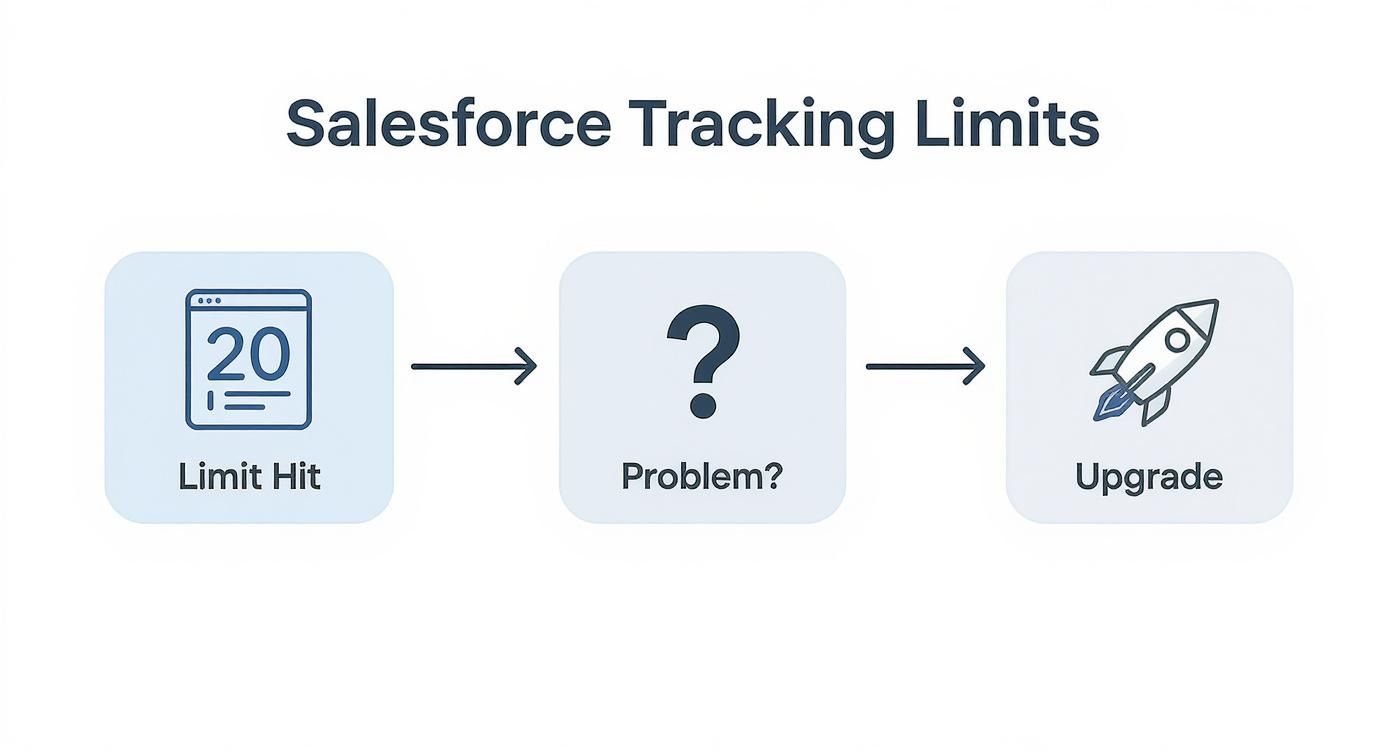
This flowchart neatly illustrates that decision point: do you work within the standard constraints or upgrade for more comprehensive tracking? The choice you make directly impacts the depth of insights you can pull.
A Glimpse Under the Hood with SOQL
For the more technically inclined folks, you can get your hands dirty by directly querying the underlying history objects using SOQL (Salesforce Object Query Language). Every standard or custom object with tracking enabled has a corresponding history object—think AccountHistory, OpportunityFieldHistory, or MyCustomObject__History.
Querying this data directly offers maximum flexibility. For instance, you could run a query to find every single Opportunity that was ever changed to “Closed Lost” and pull the prior stage value. That kind of granular detail is gold for a deep-dive analysis into where deals are stalling out.
Eventually, you’ll want to get this rich history data out of Salesforce and into a data warehouse for more advanced analytics. For a complete walkthrough on moving this kind of information into a platform like Snowflake, take a look at our guide on how to build a data pipeline. It’s a crucial next step for turning your Salesforce data into a company-wide asset.
Expert Tips for a Bulletproof Tracking Strategy
Once you’ve got the basics of field history tracking down, it’s time to get strategic. Just flipping the switch on tracking isn’t enough. The real magic happens when you build an efficient, scalable system that gives you clean insights without a ton of noise.
Let’s dive into some pro tips I’ve picked up over the years to help you build a truly bulletproof strategy.
A common pitfall is seeing those 20 available tracking slots per object and feeling like you need to fill every single one. Don’t. Think of them as a scarce, valuable resource. Every field you track should earn its keep by providing real business value. The best place to start is by taking a hard look at what you’re tracking right now.
Conduct a Ruthless Tracking Audit
Before you even think about adding a new field to track, audit what you already have on key objects like Accounts, Opportunities, and Leads. This isn’t just a technical check-the-box exercise; it’s a strategic review.
For every single tracked field, grab your team and ask a simple, powerful question: “When was the last time a change to this field actually sparked an important business conversation or made us take action?”
If the answer is a shrug, “I don’t know,” or “never,” you’ve found a prime candidate for the chopping block. Freeing up these slots is crucial. Your goal is to focus only on fields that are:
- Revenue Critical: Think
Opportunity Amount,Stage, andClose Date. These are the fields that directly feed into your forecasting and tell you about the health of your pipeline. - Compliance Essential: These are the non-negotiables needed for audits or internal governance, like
Account Ownerchanges or aContract Approval Status. - Process Integrity: Fields that confirm your team is actually following the playbook. This could be a
Next Stepfield or a specific qualification checkbox that’s part of your sales methodology.
Running this audit helps you zero in on the data that truly matters, making your history logs cleaner and way more useful. I recommend doing this at least quarterly or bi-annually.
Document Everything You Track
Okay, you’ve trimmed the fat and have a lean, meaningful list of tracked fields. What’s next? Document it. I know, I know—it’s the step everyone loves to skip, but it will save new admins and RevOps folks countless hours of head-scratching down the line.
And don’t just list the fields. Explain the why behind each one.
You can create a simple wiki page or even use a custom metadata type right inside Salesforce. For each tracked field, make sure you note:
- Object & Field Name: The API name (e.g.,
Opportunity.StageName). - Business Purpose: The “why” in plain English (e.g., “Monitors sales velocity and helps us spot stalled deals”).
- Key Stakeholders: Who actually uses this data? (e.g., Sales Leadership, Finance).
This simple documentation turns your tracking setup from a mysterious black box into a transparent, understandable system. It’s a cornerstone of any scalable Salesforce org, making sure everyone is aligned as your team grows and changes.
Plan for Data Retention and Performance
As your company grows, so will the mountain of field history data you’re collecting. Salesforce automatically purges this data after 18-24 months, but a huge volume of recent history can still slow things down, especially in reports and on record pages.
One small but critical detail to consider is the field type. Tracking changes to a picklist is different from tracking a long text area field. For any text field with over 255 characters, Salesforce only records that a change was made—it does not store the old and new values. Keep this in mind when you’re deciding what to monitor.
For any analysis that needs to look back further than 18 months, you need an off-platform plan. This usually means setting up a process to periodically export your history data into a data warehouse like Snowflake. This not only saves your data for long-term historical analysis but also keeps your live Salesforce org lean and snappy. It’s the best way to handle multi-year trend reporting without bogging down your production environment.
Field History Tracking FAQs
As you get your hands dirty with Salesforce Field History Tracking, a few common “gotcha” questions always pop up. These are the nuances that can trip up even seasoned admins. Let’s tackle some of the ones I hear most often so you can build out your tracking strategy with confidence.
We’re moving past the basics here and getting into the details that really matter for managing your data effectively.
What Happens If I Stop Tracking a Field?
This is a big one. Let’s say you’re tracking the Next Step field on Opportunities, but you realize you need that slot for a more critical field. What happens to all the historical data you’ve already collected?
Good news: Salesforce doesn’t delete it. All the existing change logs captured while tracking was active are preserved. You can still see this history on the record’s related list and pull it into reports.
The moment you uncheck that box, though, Salesforce stops recording any new changes to that field. Think of it as a clean break—the past is saved, but the future is no longer tracked.
The key takeaway is that you can adjust your tracking strategy without torching valuable historical context. This gives you the flexibility to audit and re-prioritize your 20 tracked fields as your business needs change.
Which Field Types Can’t Be Tracked (or Have Limits)?
Not all fields are created equal when it comes to history tracking. While most standard types like text, number, and picklist fields work just fine, a few have quirks you absolutely need to know about.
The most common limitation trips people up with long text fields. For any text area field that holds more than 255 characters, Salesforce will only log that a change happened—it won’t show you the before and after values. You’ll see an entry for who edited it and when, but the specifics of what they changed are lost.
Here are a few other field types with limitations:
- Formula Fields: You can’t track these. Since their values are calculated on the fly and not actually stored in the database, there’s nothing to log.
- Encrypted Fields: For obvious security reasons, changes to encrypted fields aren’t logged in the field history.
- Multi-Select Picklists: You can track these, but be warned: the “Old Value” and “New Value” are stored as a messy, semicolon-separated list. It makes reporting a real headache.
Does Field History Tracking Eat Up My Data Storage?
Yes, it absolutely does. This is a crucial point that’s easy to overlook until it’s a problem. Every single change you track creates a new record in a history object (like OpportunityFieldHistory). Over time, this can balloon into millions of records, and yes, those records count against your organization’s data storage limits.
For many companies, this isn’t an immediate concern. But for large enterprises with a high volume of transactions, it can become a serious storage hog. A business processing thousands of orders or lead updates daily could see its history tables grow by tens of thousands of records every single day.
This is exactly why being selective about which fields you track is so important. A high-frequency field that changes multiple times a day will consume way more storage than a field that’s only updated once a month. Regularly reviewing your tracked fields isn’t just good for strategic focus; it’s smart storage management.
At RevOps JET, we build the engineered data pipelines and CRM structures that turn your Salesforce data into a reliable, scalable asset. If you need to move beyond standard features and architect a robust system for tracking, syncing, and analyzing your revenue data, let’s talk. Learn more about our technical RevOps engineering on demand.