If you’re using Google Forms, you already know they’re great for collecting information. But here’s the catch: a form submission on its own doesn’t tell you the whole story. You see the what (a new lead), but you’re completely in the dark about the how and the why.
Where did that person come from? What marketing effort actually convinced them to fill out your form? Without connecting your form to Google Analytics, you’re essentially flying blind, missing out on the critical data that connects your marketing efforts to actual results.
Why Your Form Data Belongs in Google Analytics
Think of it this way: your Google Form is the finish line of a race. By default, you can see who crossed it, but you have no clue which path they took to get there. Was it that email campaign you spent a week on? A random social media post? Or was it a visitor from an organic search?

This is the data gap that integrating Google Forms with Google Analytics closes. It transforms a simple list of submissions in a Google Sheet into a rich, detailed narrative about your user engagement and marketing performance.
Unlock Deeper User Insights
Once you start sending form submission data into Google Analytics 4 (GA4), you’re not just counting leads anymore. You’re attributing them to specific campaigns and user actions, which unlocks a whole new level of understanding.
Suddenly, you can:
- Pinpoint Your Best Channels: Finally see exactly which sources—organic search, a specific paid ad, your email newsletter—are actually delivering the goods.
- Trace the Full User Journey: Get a clear picture of how people interact with your website before they ever land on the form.
- Spend Your Marketing Budget Smarter: Stop guessing and start investing your resources in the channels that are proven to work, not just the ones that generate clicks.
- Measure Real Conversion Rates: Move past vanity metrics like page views and start tracking the KPIs for lead generation that truly impact your bottom line.
This connection is the difference between simply collecting data and actively analyzing performance. It’s how you prove which campaigns are working and make sharp, data-backed decisions to refine your entire lead generation strategy.
The Power of a Unified View
At the end of the day, what you want is a single, reliable place to see how your marketing is performing. Google Analytics is the undisputed industry standard for this.
In fact, Google Analytics is projected to be used by 37.9 million websites globally by 2025, solidifying its place as the go-to web analytics platform. By piping your form data into it, you’re ensuring that one of your most important conversion points is included in this comprehensive view. It’s about getting the clarity you need to actually grow.
Tracking Embedded Forms with Google Tag Manager
When your Google Form is living on a page on your website, Google Tag Manager (GTM) is hands-down the best tool for the job. Think of it as a middleman that listens for specific actions—like someone hitting “submit” on your form—and then taps Google Analytics on the shoulder to let it know what just happened. This is how you get serious, granular control over your tracking.
Honestly, just tracking views of a “thank you” page is old news. With GTM, you can capture the submission event itself, making your data way more accurate because it’s tied directly to the user’s action. This is how the pros connect a google form to google analytics when it’s embedded on a site.
The 3 Core GTM Pieces for Form Tracking
To get this working, you need three key components inside your GTM container. I like to think of them as a simple command sequence: a listener, a rule, and an action.
- The Listener (Built-in Variables): First, you have to tell GTM to even pay attention to forms. You do this by enabling the built-in “Form” variables, which essentially activates a listener that waits for a
form_submitevent to happen. - The Rule (Trigger): Once the listener “hears” a submission, the trigger acts as your filter. It defines the exact conditions for when you actually care about that submission. This is super important for avoiding tracking failed attempts, like when someone forgets to fill out a required field. The trigger makes sure you only count the real deal.
- The Action (GA4 Event Tag): Finally, when the trigger’s rules are met, the tag fires. This is the part that actually sends the data to Google Analytics. You’ll set up a GA4 Event Tag to send a custom event, like
generate_lead, every time a successful submission happens.
This tag-and-trigger system is what makes GTM so powerful. It lets you create incredibly specific rules to isolate the exact user interactions that matter to your business. It’s the same event-driven logic that powers many modern marketing automation integrations, passing data between different tools.
Setting Up Your GTM Listener and Trigger
Alright, let’s get practical. The first thing you need to do is tell GTM what to look for. Head over to the “Variables” section in your GTM container and flip on all the built-in Form variables. It’s just a few clicks, but it gives you access to crucial data like the Form ID and Form Classes that you’ll need in a minute.
Next up is the trigger. This is where a lot of people get tripped up because not all forms behave the same way. The classic mistake is creating a trigger that fires on every submission attempt, including errors, which will completely mess up your data.
Here’s a look at the GTM interface where you’ll be putting these pieces together.
This dashboard is your command center for creating the tags and triggers needed to capture form data.
To avoid bad data, always use the “Check Validation” option in your Form Submission trigger. This little checkbox tells GTM to only fire if the form’s default browser action isn’t blocked—a common sign that a validation error stopped the submission. Then, you have to specify which form to listen to by adding a condition, like Form ID equals your-form-id.
Pro Tip: Don’t skip testing. Use GTM’s Preview mode and try submitting the form successfully and unsuccessfully. If your tag fires when you submit an empty form, your trigger isn’t specific enough and you need to tighten up its conditions.
Sending the Data with a GA4 Event Tag
Once you have a reliable trigger, the last step is a breeze. You just need to create the tag that sends the info over to GA4.
Create a new “GA4 Event” tag and give your event a clear, descriptive name. I recommend generate_lead because it’s one of Google’s own recommended event names, which keeps things clean.
Now, just attach the form submission trigger you just built. That’s it! Whenever a user successfully submits that specific form, your trigger will fire, which in turn activates the tag. That tag then sends the generate_lead event straight to your Google Analytics 4 property. From there, you can analyze it, mark it as a conversion, and see exactly which marketing channels are bringing in the leads.
Connecting Standalone Forms with Google Apps Script
So, you’ve mastered tracking forms embedded on your own website. But what about all those times you share a direct link to a Google Form? I’m talking about the link in your email signature, your social media bio, or a quick message to a prospect.
In those scenarios, Google Tag Manager is off the table because the form lives on forms.google.com—a domain you don’t control. This is a massive blind spot where tons of valuable submission data just vanishes into thin air.
The best way to fix this is by using a tool already built into the Google ecosystem: Google Apps Script. This is a scripting platform that lets you run code when certain things happen in Google Workspace, like someone submitting your form. It’s hands-down the most reliable way to connect a standalone google form to google analytics.
Why a Server-Side Solution Is Better
Using Apps Script is a completely different ballgame. Instead of relying on the user’s browser to send tracking data—which can easily be derailed by ad blockers or network issues—the script runs on Google’s servers the moment a form is submitted. This makes your tracking incredibly robust.
Basically, you’ll add a small piece of JavaScript directly into your form’s backend. When a user hits “submit,” this script wakes up, packages the essential info, and shoots it straight to your GA4 property using something called the Measurement Protocol. It’s a direct, secure line from your form to your analytics.
This workflow is pretty universal when it comes to event tracking. You’re always listening for an action, triggering a process, and then sending the data off.
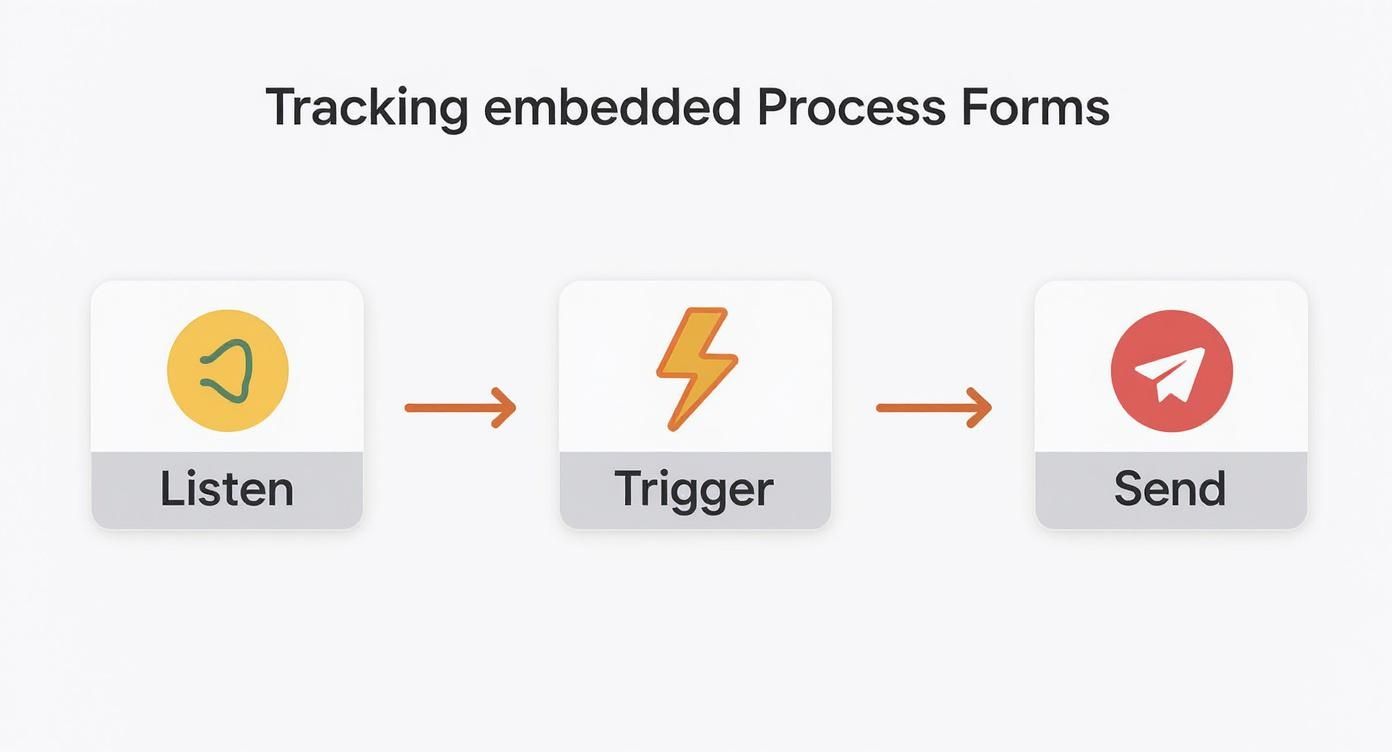
The core logic doesn’t change: capture a user’s action and send a neat, structured event to your analytics platform to be processed.
Choosing Your Google Form Tracking Method
Not sure which method is the best fit for your situation? This quick comparison should help you decide whether GTM, Apps Script, or another solution is right for your specific use case.
| Tracking Method | Best For | Technical Difficulty | Key Advantage |
|---|---|---|---|
| GTM + Embedded Form | Forms embedded on your own website using an iframe. | Medium | Tracks the entire user journey, including form views and interactions before submission. |
| Google Apps Script | Standalone forms shared via a direct link (email, social media, etc.). | Medium-High | Extremely reliable server-side tracking that bypasses ad blockers and browser issues. |
| Redirect to Thank You Page | Simple use cases where you only need to count submissions as pageviews. | Low | Very easy to set up without any code, but lacks detailed event data. |
Ultimately, using Google Apps Script for standalone forms gives you the most accurate and complete data, ensuring no submission goes uncounted.
Accessing the Script Editor
Getting into the Apps Script environment is surprisingly simple. Every Google Form has a script editor hiding in plain sight.
Here’s how to find it:
- Open up your Google Form.
- Click the three-dot menu (More) in the top-right corner.
- Select Script editor from the dropdown list.
This will pop open a new tab with the Google Apps Script interface, which is already linked to your form. This is where the magic happens.
You need to go this route because Google Forms and Google Analytics don’t have a native, direct way to talk to each other for standalone forms. They were built for different jobs—one for gathering information and the other for analyzing web traffic. Apps Script acts as the perfect middleman to bridge that gap. You can find more tips on advanced tracking setups on getleadpulse.com.
Implementing the Tracking Script
Once you’re inside the Script Editor, you’ll just need to replace the default placeholder code with a script designed to fire a GA4 event.
To get it working, the script will ask for three key pieces of information:
GA4_MEASUREMENT_ID: Your Measurement ID from GA4 (it always starts with “G-”).API_SECRET: A special key you generate from within your GA4 Data Stream settings. This keeps your data secure.EVENT_NAME: The custom name for your event. I like to use something clear likegenerate_leadorcontact_form_submission.
The script itself contains a function that gets triggered automatically by the form’s onFormSubmit event. When that happens, it builds a data payload with your event name and sends it directly to Google Analytics using your secret key and measurement ID.
Crucial Tip: When you save the script and set up its trigger, Google will pop up a permissions request. You must authorize the script to connect to external services. This is just a standard security check to make sure you’re okay with it sending data out to Google Analytics.
By setting this up, you ensure every single submission gets counted. You’ll finally have a complete and accurate picture of how your standalone forms are performing, no matter where you share the link.
Turning Submission Events into GA4 Conversions
Alright, you’ve got data flowing from your Google Form to Google Analytics. That’s a huge win, but let’s be honest, the raw event data is only half the story. To really get the insights you need, you have to tell GA4 that a form submission isn’t just another click—it’s a critical goal for your business. We do this by flagging it as a conversion.
This one small step transforms a simple interaction into a key performance indicator that GA4 can use for attribution, reporting, and even ad campaign optimization. If you skip this, your form submissions just get lost in the noise of page views and scroll events. By marking them as conversions, you put a spotlight on them and tie them directly to your performance metrics.

Why Conversions Matter More Than Events
In GA4, pretty much everything a user does is considered an event. A page_view is an event, a scroll is an event, and your custom generate_lead event is… you guessed it, just another event. At least, it is until you tell Google it’s special.
Here’s why making that distinction is so powerful:
- It Activates Attribution: Suddenly, you can see exactly which marketing channels (Organic, Paid, Social) are actually delivering form completions, not just sending traffic to your site.
- It Powers ROI Analysis: You can assign a monetary value to your conversions, which allows you to calculate the return on investment for your ad spend.
- It Helps You Build Better Audiences: Want to retarget everyone who filled out a form? Or maybe build a lookalike audience based on your most valuable leads? You need conversions for that.
This is what separates basic traffic analysis from true performance measurement. For example, if you see a lot of views on the page with your form but very few submissions, that’s a red flag. It might mean your form is too long or confusing, an issue that’s directly related to the page’s user engagement and a high bounce rate in Google Analytics.
How to Mark Your Event as a Conversion in GA4
The good news is that turning your event into a conversion is incredibly simple. You just need to make sure your tracking is working and that GA4 has received at least one of your form submission events first.
Once that’s done, just head into your GA4 property:
- Go to Admin (the little gear icon in the bottom-left).
- In the Property column, click on Events.
- Look for your custom event in the list. It’ll be whatever you named it, like
generate_leadorcontact_form_submission. - On the far right, you’ll see a toggle switch in the “Mark as conversion” column. Just flip that switch on.
And that’s literally all there is to it. No crazy settings, no hidden menus. The moment you flip that switch, GA4 will begin counting every new form submission as an official conversion. The data usually starts showing up in your conversion reports within 24 hours.
With that single click, you’ve fundamentally changed how GA4 sees your form data. It’s no longer just a behavioral tic; it’s a core business goal you can use to prove the value of your marketing and make smarter decisions.
Troubleshooting Common Google Form Tracking Problems
https://www.youtube.com/embed/dNsCUnUOlgE
Even when you follow the steps perfectly, you can still hit some frustrating snags getting your Google Form and Google Analytics to play nice. Maybe an event just isn’t showing up in GA4’s Realtime report, or worse, you’re seeing double-counted conversions messing up your data. Don’t worry—most of these issues are common and usually have a simple fix.
These little hiccups happen because there are a few moving parts, from Google Tag Manager triggers to custom scripts. The trick is to troubleshoot methodically. Instead of trying to fix everything at once, just check one piece of the puzzle at a time. It’s a much faster way to find exactly where things are going wrong.
Why Aren’t My Events Showing Up in GA4?
This is probably the most common headache: you know a form was submitted, but you’re staring at an empty Realtime view in GA4. When this happens, it almost always comes down to a problem with how the data is being sent or what’s triggering it.
Before you get too frustrated, run through this quick diagnostic checklist:
- Confirm Your IDs: Seriously, double-check your GA4 Measurement ID (the one that looks like “G-XXXXXX”). Is it pasted correctly in your GTM tag or Google Apps Script? A single typo is all it takes to break the whole thing.
- Use GTM Preview Mode: This is your best friend. Fire up GTM’s Preview mode and do a test submission. If you don’t see your tag firing, it means your trigger conditions are off or too restrictive.
- Check Your API Secret (for Apps Script): If you went the Apps Script route, make sure the API Secret you generated is correct and hasn’t expired. This is a super common reason standalone form tracking fails.
- Just Wait a Minute: Sometimes GA4’s Realtime report just lags a bit. Give it a minute or two to catch up before you declare it broken.
The old days of Universal Analytics are over. We used to just look for a “thank you” pageview. Now, with GA4’s event-based model, we have to confirm the entire event—the name, the parameters, everything—is being configured and sent correctly.
This whole shift is central to GA4, which officially took over from Universal Analytics on July 1, 2023. It’s a completely different way of thinking about analytics, but it gives us much more flexibility. If you want to dive deeper into what changed, you can review more details on the GA4 transition on mycodelesswebsite.com.
Double-Counting Conversions and Losing UTMs
Another classic issue is seeing two conversion events for a single form submission. This usually happens when you have two different triggers firing for the same action. For instance, you might have a GTM form submission trigger and a “thank you” pageview trigger both linked to the same conversion. Take a look at your GTM container and make sure only one trigger is responsible for that conversion event.
And what about disappearing UTM parameters? If you’re using the Apps Script method, this is a known quirk. The basic script doesn’t automatically grab and forward campaign data. You actually have to modify the script to look for URL parameters in the user’s session and then include them in the data packet it sends to GA4. It’s an extra step, but it’s the only way to get accurate campaign attribution for your standalone forms.
Still Have Questions? Let’s Clear Things Up
You’ve got the methods down, but a few common questions always pop up when connecting a Google Form to Google Analytics. Let’s tackle them head-on so you can get your setup right the first time.
How Can I See Which Option a User Picked in a Form?
Yes, you absolutely can, but it requires a bit more legwork.
If your form is embedded on your site, you’ll need to dive back into Google Tag Manager. The trick is to configure GTM to specifically listen for and capture the values from certain form fields, pushing them into the Data Layer.
For a standalone form shared via a link, your Google Apps Script is the key. You’ll need to modify the script to grab the answer from a specific question and send it over to GA4 as a custom event parameter. This is incredibly useful for segmenting your data—for instance, seeing how many users who selected “Option A” also completed a specific goal later on.
What if My Website Has a Strict Content Security Policy?
This is a great, and often overlooked, question. A tight Content Security Policy (CSP) is a common culprit when tracking suddenly stops working. Your server might be intentionally blocking the tracking scripts from firing.
To fix this, you’ll likely need to whitelist Google’s domains in your policy.
Specifically, check your script-src and connect-src directives. You’ll probably need to add *.googletagmanager.com and *.google-analytics.com to them. As always, test any CSP changes in a staging environment first to make sure you don’t accidentally break something else on your site.
A misconfigured CSP is a silent killer for analytics. Your GTM setup could be perfect, but if the CSP blocks the data from being sent, you’ll see nothing in GA4. It’s one of the first things I check when troubleshooting, especially on enterprise-level websites.
Which is Better: GTM or the Apps Script Method?
This one’s easy—it all comes down to where your form is located.
- For embedded forms, Google Tag Manager is the clear winner. It’s built for this. GTM gives you way more flexibility and keeps all your website tracking neatly organized in one place.
- For standalone forms, Google Apps Script is your only real choice. You simply can’t install GTM on a page hosted at
forms.google.com. The Apps Script method provides reliable, server-side tracking that works perfectly when you’re sharing the form with a direct link.
Picking the right tool for the job makes all the difference. Choose based on your use case, and you’ll get the clean, reliable data you’re after.
At RevOps JET, we build the production-grade data pipelines and CRM architecture that high-growth companies need. If you’re tired of point-and-click solutions and need real engineering to solve your RevOps challenges, see how we can help.