Let’s clear up the confusion around bounce rate in Google Analytics once and for all. In Google Analytics 4 (or GA4), the bounce rate isn’t what it used to be. It’s now simply the opposite of a much smarter metric called ‘Engagement Rate,’ which tells you if people are actually interacting with your site in a meaningful way.
What Bounce Rate Actually Means in GA4 Today
Remember the old bounce rate from Universal Analytics? It was like someone walking into your store, looking at one thing, and immediately walking out. That old model had a major flaw: it often marked perfectly good visits as failures.
Imagine someone landing on your blog, reading an entire 8,000-word guide, getting exactly what they needed, and then leaving. Universal Analytics would have called that a “bounce,” which was incredibly misleading.
GA4 flips the script by asking a much better question: “Was this session engaged?”
The New Definition of Engagement
In GA4, a session is officially considered engaged if a visitor does at least one of these three things:
- Stays on the page for longer than 10 seconds (you can adjust this timing).
- Triggers a conversion event (like a form fill or a download).
- Views at least two pages.
If a session doesn’t meet any of those criteria, it’s counted as a bounce. This change was a direct response to years of frustration with the old metric. Google knew we needed a more realistic way to measure user behavior, which you can read more about in this deep dive on Analytics Ninja.
Key Takeaway: Bounce Rate in GA4 is the percentage of sessions that were not engaged. It’s calculated as: 100% - Engagement Rate. A high bounce rate means a low engagement rate, and vice versa.
This isn’t just a tweak to a formula; it’s a completely new way of thinking. Google is nudging us to stop punishing valuable single-page visits and start focusing on genuine interaction.
A low bounce rate in GA4 is a powerful signal that your content is hitting the mark, keeping people interested, and driving the actions you care about. It gives you a much clearer and more actionable picture of how your website is really performing.
To help you get a handle on these new metrics, here’s a quick rundown of the key players in GA4’s engagement model.
Quick Guide to Key Engagement Metrics in GA4
This table breaks down the core metrics that work together to paint a full picture of user interaction on your site.
| Metric | What It Measures | Why It Matters |
|---|---|---|
| Engaged sessions | The total number of sessions that lasted longer than 10 seconds, had a conversion event, or had at least 2 pageviews. | This is your baseline for quality traffic. It separates visitors who are just passing through from those who are showing real interest. |
| Engagement rate | The percentage of sessions that were engaged sessions. (Engaged sessions / Total sessions) | A high engagement rate is a strong indicator that your content and user experience are effective at capturing and holding attention. |
| Bounce rate | The percentage of sessions that were not engaged. (100% - Engagement rate) | While it’s the inverse of engagement rate, it can still be a useful gut-check for identifying pages or traffic sources that fail to connect with visitors. |
| Average engagement time | The average time your site was in the foreground in a user’s browser. | This shows how long users are actively interacting with your content, giving you a much more accurate measure of attention than “time on page.” |
Understanding these metrics is the first step toward moving beyond outdated analytics and making smarter, data-driven decisions for your business.
From Universal Analytics to GA4: The Big Shift
If you’ve been in the web analytics game for a while, you’ll remember the old bounce rate from Universal Analytics (UA). It was a metric we all obsessively watched, but let’s be honest—it often told a misleading story.
Think about this classic scenario: a visitor lands on your blog from a Google search. They spend ten solid minutes reading your amazing, in-depth article, find exactly what they needed, and leave feeling completely satisfied. In the old world of UA, that successful visit was frustratingly labeled as a bounce.
That’s because the old metric was incredibly rigid. A bounce was simply a session with a single pageview, period. It didn’t care if the user spent 15 minutes reading or left in two seconds. This blind spot often painted a skewed picture of a visit’s quality, which is a huge part of why Google rethought the entire concept. You can dive deeper into how this limitation shaped the evolution of analytics.
The Problem with the Old Model
The UA definition of a bounce was simple, but its simplicity was its biggest flaw. This black-and-white rule created a few major headaches for marketers and analysts:
- It punished good content: Think about long-form articles, contact pages, or FAQs. If they solved a user’s problem on the first page, they were slapped with a high bounce rate.
- It lacked crucial context: The metric couldn’t tell the difference between a user who left instantly out of frustration and one who left after 15 minutes of being completely absorbed in your content.
- It encouraged clicks over quality: To “fix” high bounce rates, some marketers focused on just getting users to click anywhere else, even if it wasn’t the best experience for them.
This is where the new approach in Google Analytics 4 (GA4) really shines. It recognizes that an engaged session is a successful one, not a bounce.
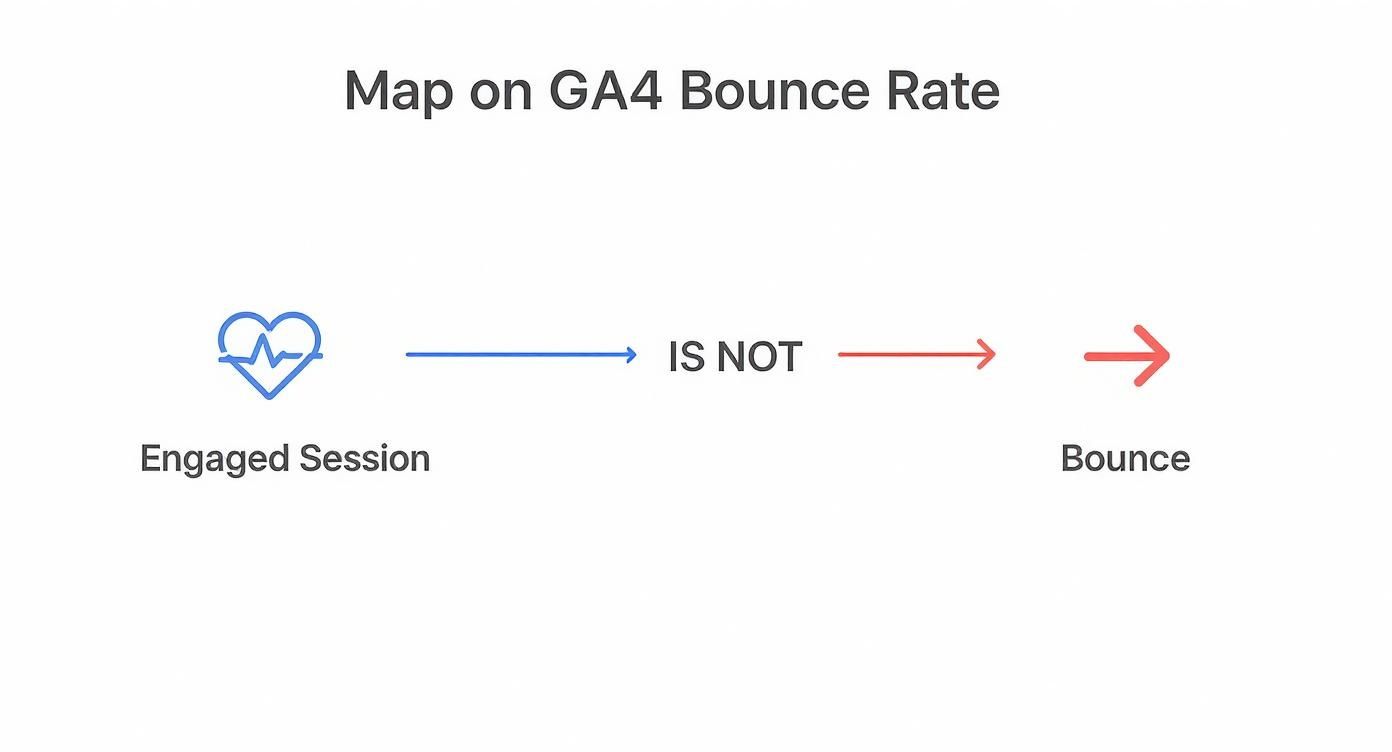
The big takeaway here is that GA4 pivots from tracking simple page navigation to measuring actual user interaction, giving us a far more accurate view of performance.
GA4’s Smarter Approach: Engaged Sessions
Instead of clinging to that outdated model, GA4 introduces a much more intelligent concept: the engaged session. It actively looks for signals that a user is genuinely interacting with your site, not just passing through.
In GA4, a session is considered engaged if it hits at least one of these benchmarks:
- It lasts longer than 10 seconds (and you can adjust this timer).
- It includes a conversion event (like a form fill or a purchase).
- It involves at least two pageviews or screenviews.
So, what’s a bounce now? It’s simply a session that doesn’t meet any of those criteria. This means the bounce rate in Google Analytics 4 is the direct inverse of your Engagement Rate. If your engagement rate is 75%, your bounce rate is 25%. It’s a much more logical and useful way to understand user satisfaction.
Let’s break down the key differences side-by-side. The table below really highlights how significant the upgrade is in GA4’s methodology.
Bounce Rate Calculation UA vs GA4
| Aspect | Universal Analytics (UA) | Google Analytics 4 (GA4) |
|---|---|---|
| Calculation Basis | Percentage of single-page sessions. | Percentage of sessions that were not engaged. |
| Primary Metric | Bounce Rate. | Engagement Rate (Bounce Rate is the inverse). |
| Triggers | A session was a bounce if the user viewed only one page and had no interaction events. | A session is a bounce only if it’s less than 10 seconds, has no conversion, AND has only one pageview. |
| What It Implies | Often misleadingly suggested a lack of interest, even on successful single-page visits. | More accurately identifies sessions where a user showed no signs of genuine interest or interaction. |
This isn’t just a tweak in definition; it’s a fundamental shift in philosophy. GA4 pushes us to measure what truly matters—real user engagement—and frees us from making bad decisions based on the ghosts of analytics past.
Finding and Customizing Bounce Rate in GA4
One of the first things people notice when they jump into Google Analytics 4 is that the bounce rate seems to have vanished from the standard reports. GA4 actually prioritizes its newer metric, Engagement Rate, but don’t worry—bounce rate isn’t gone for good. It’s just tucked away, and you can easily add it back to your dashboard.
Let’s walk through exactly how to do that.
Google’s thinking here is to encourage a focus on positive signals (engagement) over negative ones (bounces). But realistically, having both metrics side-by-side gives you a much richer story about how people are interacting with your site.
Adding Bounce Rate to Your Standard Reports
So, where do you need it most? I’d recommend starting with the Pages and screens report and the Landing page report. These are the two places where bounce rate really shines a light on content performance. The steps are identical for both.
Here’s how to customize your reports right in the GA4 interface:
-
Head to Your Report: In the left-hand navigation, click your way over to
Reports>Engagement>Pages and screens. -
Switch to Customization Mode: See that little pencil icon in the top-right corner? Click it to Customize report. You’ll need to have editor permissions to do this, so make sure you have the right access level.
-
Find Your Metrics: A panel will slide out from the right side of the screen. Look for the
Report datasection and click on Metrics. -
Add Bounce Rate: Click Add metric and just start typing “Bounce rate” into the search bar. Once you see it, select it. I usually drag it up to sit next to the Engagement rate for a quick comparison.
-
Apply and Save Your Changes: Hit the blue Apply button at the bottom of the panel. Then, click Save in the top-right and choose Save changes to current report.
And that’s it! You’ll now see a “Bounce rate” column right there in your report, giving you that crucial performance indicator without having to dig for it.
Here’s what the report looks like before you make any changes, with just the default metrics showing.
After you follow these steps, your report will be updated with the bounce rate column, giving you a much clearer picture of page-level engagement at a glance.
Creating a Saved View for Quick Access
Nobody wants to repeat those steps every single time they log in. The great news is, you don’t have to. Once you save the changes to the report, GA4 makes that your new default view. Every time you come back, your customized report will be waiting for you.
By customizing your reports to include bounce rate in Google Analytics, you’re basically tailoring the tool to tell you what you actually need to know, rather than just accepting the out-of-the-box setup.
It’s a small tweak that makes a huge difference in your day-to-day workflow. Having that diagnostic metric front and center means you can spot user experience issues or content that just isn’t landing right away. A few minutes of setup can save you a ton of time and lead to much sharper insights.
Making Your Bounce Rate Data More Meaningful
So, you’ve added bounce rate back into your GA4 reports. That’s a great first step. But to really make it work for you, we need to go deeper. The real power comes from teaching Google Analytics what you consider an “engaged session,” not just accepting its default definition.
Let’s be honest, the out-of-the-box settings can be a little misleading. By default, GA4 considers a session “engaged” if it lasts longer than 10 seconds, includes a conversion, or has more than one pageview. But think about your own content. Is someone who lands on a 2,000-word blog post and leaves after 11 seconds truly engaged? I think we both know the answer is no. This is where a little customization makes all the difference.

Right now, your bounce rate in Google Analytics might be giving you a fuzzy picture. Let’s bring it into sharp focus.
Adjusting the Engaged Session Timer
The quickest win here is to change that default 10-second timer. It’s a simple tweak that can immediately boost the quality of your engagement data. For a site with in-depth articles or complex product pages, a 10-second visit is barely enough time to register the headline.
Consider setting a more realistic timer, like 30 seconds or even 60 seconds. This ensures that you’re only counting visitors as “engaged” if they actually stick around long enough to absorb what you have to say.
You can find this setting by going to:
Admin>Data Streams>[Your Web Stream]Configure tag settings>Show more>Adjust session timeout- Crank up the number under
Adjust timer for engaged sessions
A quick heads-up: when you increase this timer, your engagement rate will go down and your bounce rate will go up. Don’t panic! This is a good thing. It means your metrics are now reflecting a much truer picture of genuine user interest.
Tracking What Really Matters with Custom Events
Beyond the timer, the real magic happens when you teach GA4 which specific actions on your site are important. GA4 has no idea that someone playing a video, clicking a key button, or scrolling down a page is a sign of engagement. You have to spell it out by setting up custom events.
These events move you beyond basic pageviews and give you a much richer, more nuanced understanding of how people are actually interacting with your site.
By tracking specific user actions as events, you transform bounce rate from a passive metric into an active diagnostic tool. It starts to answer not just “if” users are engaged, but “how” they are engaging.
For example, you could set up custom events to fire when a user:
- Scrolls 75% down a blog post: This is a fantastic signal that they’re actually reading your content.
- Plays an embedded video: A clear interaction that the default settings would completely miss.
- Clicks a “Request a Demo” button: This is a high-intent action that absolutely must count as engagement.
- Downloads a PDF or whitepaper: Another crucial action that shows genuine interest.
Once these custom events are in place, you can flag the most important ones as conversion events inside GA4. This is a critical step. Any session that includes an action you’ve marked as a conversion is automatically counted as engaged, no matter how long the visitor was on the page. For a closer look at this, our guide on data-driven marketing solutions explains how this fits into a bigger measurement strategy.
Turning Your Bounce Rate Into a Strategic KPI
When you customize the session timer and track meaningful events, you fundamentally change what bounce rate means for your business. It’s no longer a vague metric based on Google’s generic rules.
Instead, it becomes a razor-sharp measure of how many visitors land on your site and leave without taking one of the specific, high-value actions you’ve defined as important. This refined metric lets you diagnose page performance with incredible accuracy. A high bounce rate on a landing page no longer just means “people left.” It tells you they left without clicking your primary call-to-action, watching your product video, or scrolling to see key features. Now that’s an insight you can act on.
Taking Your GA4 Bounce Rate to the Data Stack
For anyone serious about data, the real magic doesn’t happen inside the GA4 interface. It happens when you pull the raw event data out of Google’s world and into your own. Once you connect GA4 to a data warehouse like BigQuery or Snowflake, you break free from the platform’s constraints and get total control over how you define and calculate metrics like bounce rate.
This is how you build a truly custom analytics foundation. Forget relying on Google’s canned definition of an “engaged session.” You get to create your own logic that reflects what really matters to your business. It’s the difference between using a pre-made gadget and having a full workshop to build the exact tool you need for the job.
Getting Your Data Out: The BigQuery Export
First things first: you have to get your data out of GA4’s walled garden. Google actually makes this pretty easy with a native, free integration that pipes raw event data from GA4 straight into Google BigQuery. We’re not talking about a summary report here; this is a firehose of every single user interaction, flowing in near real-time.
Setting this up is a total game-changer. Why?
- You Own the Data: You finally have the raw, unsampled, event-level data sitting in your own warehouse. It’s yours.
- Total Flexibility: You’re no longer stuck with the metrics and dimensions Google decides to give you in the UI.
- Look Back in Time: The data is stored forever, letting you run complex analysis that goes way beyond GA4’s built-in data retention limits.
Once that pipeline is live, every interaction—from a page_view to a custom demo_request_clicked event—gets streamed into a new table in BigQuery each day. This collection of raw data becomes the source of truth for all your user behavior analysis. From here, you can plug it into the rest of your modern data stack.
Making Sense of the Mess with dbt
With a constant stream of raw data hitting your warehouse, the next step is to shape it into something clean, reliable, and easy to query. This is where a tool like dbt (data build tool) is indispensable. Think of dbt as a way to bring professional software development practices—like version control and testing—to your SQL data transformations.
Using dbt, you can build a series of models that take that raw GA4 data and turn it into useful, structured tables. A typical workflow might look like this:
- A staging model to do the initial cleanup, like casting data types and renaming confusing columns.
- An intermediate model that stitches events together to create a unified
sessionstable. - A final
fct_sessionsmodel that calculates all your key metrics for each session, including your very own definitions ofis_engaged_sessionandbounce_rate.
This is where you codify your business logic. You’re no longer relying on a black-box calculation happening on Google’s servers.
Calculating Your Own Bounce Rate in SQL
This is where you take back the power. With your dbt models running, you can write SQL to define engagement and bounce rate in Google Analytics data based on what actually makes sense for your business.
Let’s say for your B2B SaaS company, an “engaged session” is one where a user did any of the following:
- Spent more than 45 seconds on the site.
- Clicked the “Request a Demo” button (
demo_request_clicked). - Scrolled at least 50% down a key feature page (
scroll_eventwith apercent_scrolledparameter > 50).
By defining engagement in SQL, you can combine time-based, event-based, and page-specific criteria with complete precision. This custom logic gives you a bounce rate that directly measures performance against your specific business goals, not Google’s generic ones.
The SQL logic to figure this out in a dbt model might look conceptually like this:
SELECT session_id, — Calculate time spent in the session MAX(event_timestamp) - MIN(event_timestamp) AS session_duration_seconds,
— Check for specific engagement events COUNT(CASE WHEN event_name = ‘demo_request_clicked’ THEN 1 END) > 0 AS has_demo_request, COUNT(CASE WHEN event_name = ‘scroll_event’ AND percent_scrolled > 50 THEN 1 END) > 0 AS has_deep_scroll,
— Define your custom engagement flag CASE WHEN session_duration_seconds > 45 OR has_demo_request OR has_deep_scroll THEN 1 ELSE 0 END AS is_engaged_session FROM your_sessions_model GROUP BY session_id
Once you have that is_engaged_session flag, calculating your custom bounce rate is a piece of cake: it’s just the percentage of sessions where that flag is 0. This whole process is a cornerstone of building strong, end-to-end marketing automation integrations that fuel your entire revenue engine with trustworthy data. You’ve created a single source of truth for bounce rate that can be used consistently across your BI tools, CRM, and marketing platforms.
Turning Bounce Rate into Revenue Insights

Alright, you’ve fine-tuned your metrics. Now, let’s get to the good part: connecting that data to actual dollars. For a RevOps team, bounce rate in Google Analytics isn’t just some fluffy marketing metric. It’s a fantastic diagnostic tool for your entire revenue funnel.
Think of it as an early warning system. A high bounce rate on a key page is a bright red flag, signaling a breakdown in the customer journey long before your pipeline reports start looking grim. It helps you find and fix the friction points that are quietly costing you money.
Diagnosing Funnel Leaks with Bounce Rate
A sudden spike in bounce rate isn’t just a website problem; it’s a business problem. Every page tells a story, and for a RevOps pro, those stories almost always have a financial footnote.
Here are a few places where bounce rate becomes a critical signal:
- Key Landing Pages: Seeing a high bounce rate here? You’re essentially lighting money on fire, paying for clicks that go nowhere. This usually points to a disconnect between your ad copy and what’s on the page, meaning your paid campaign is pulling in the wrong crowd.
- Pricing Page: If visitors are hitting your pricing page and immediately leaving, you’ve got a serious issue. Maybe your pricing is confusing, the value isn’t clear, or the next step is just too hard to find.
- “Request a Demo” Page: This is the last hurdle before a prospect officially becomes a lead. Bounces here often mean the form is too long, the page is broken, or you haven’t included enough trust signals like testimonials or case studies.
Each of these is a leak in your revenue funnel. By keeping a close eye on the bounce rate for these make-or-break pages, you can plug the holes before they drain your pipeline.
From Insight to Actionable RevOps Plays
Spotting the problem is only half the job. The real magic happens when you turn that insight into a coordinated plan of attack. This is where RevOps shines—getting marketing, sales, and product teams on the same page to solve a shared problem.
A high bounce rate is never just a “marketing problem.” It’s a signal that the customer’s journey is broken, and it requires a unified response from the entire revenue team to fix it.
Once bounce rate has flagged a friction point, you can launch specific “plays” to fix it. If you want a deeper dive, our guide on KPIs for lead generation offers a great framework for measuring how well these actions are working.
https://revopsjet.com/blog/kpi-lead-generation
Here’s how to translate a high bounce rate into real-world next steps:
- High Bounce Rate on a Paid Ad Landing Page
- Action: Get together with the marketing team. Dig into the ad targeting and messaging. You need to make sure the promise you make in the ad is the very first thing a visitor sees on the landing page.
- High Bounce Rate on the Pricing Page
- Action: Huddle up with product marketing to make the value of each pricing tier crystal clear. It might be time to A/B test a new layout or add an FAQ section to squash common objections before they even pop up.
- High Bounce Rate on Blog Content
- Action: Loop in the content team. Every article needs a clear, compelling call-to-action (CTA) that logically guides the reader to what’s next—whether that’s another article, a downloadable guide, or a demo request.
Using bounce rate as your starting point, you can orchestrate these focused fixes, turning a simple number into a powerful driver for optimizing the entire customer lifecycle.
A Few Lingering Questions About Bounce Rate
Even with all the changes in Google Analytics 4 (GA4), some classic questions about bounce rate still come up. Let’s tackle a few of the most common ones so you can feel confident using this metric.
Is a High Bounce Rate in GA4 Always a Bad Thing?
Absolutely not. A high bounce rate just tells you that you have a low engagement rate—that’s it. While it can definitely point to a problem, you always have to ask yourself: what was the user trying to do on this page?
Think about it. A blog post that gives a visitor the exact answer they were looking for might lead them to leave happy without clicking anywhere else. That’s a win for the user, but GA4 would call it a bounce if they didn’t stick around. Or what about someone landing on your contact page, grabbing your phone number, and closing the tab to call you? Goal accomplished.
Key Insight: Never look at bounce rate in a vacuum. A “bounce” isn’t a failure if the user got what they came for quickly and efficiently. Always pair it with other context about the page’s purpose.
Why Did Google Hide Bounce Rate in GA4?
Google’s big idea with GA4 was to shift the focus from negative metrics (like bounces) to positive ones, like Engagement Rate. Since bounce rate is just the flip side of engagement rate, they decided to put the more positive metric front and center.
The good news is, it’s not really hidden—it’s just not in the default view. You can add it back in a few clicks. Just head to a report like “Pages and screens,” find the pencil icon to “Customize report,” go to “Metrics,” and add “Bounce rate” to your view. Save your changes, and it’ll be there waiting for you next time.
How Do I Actually Lower My Bounce Rate?
To lower your bounce rate, you need to increase engagement. The most important thing is making sure your page delivers on the promise made by the ad, search result, or social media post that brought the user there. Mismatched expectations are an engagement killer.
Here are a few practical things you can do right away:
- Speed Things Up: Nobody waits for a slow-loading page. This is probably the #1 reason people leave.
- Give Clear Directions: Use obvious calls-to-action (CTAs) and helpful internal links to guide users to their next step.
- Make it Easy to Read: Break up your content with great headlines, short paragraphs, and eye-catching images.
- Nail the Mobile Experience: A clunky mobile site is a one-way ticket to a disengaged session.
At RevOps JET, we build the production-grade data pipelines that turn raw analytics data into reliable revenue insights. Stop wrestling with dashboards and start getting clear, actionable answers from your data stack. Learn how our on-demand RevOps engineers can help you.